Branding & Layout
Make your Quotes look like your business with your logo, colors, banner, fonts, and layout.
Go to Settings → Branding & Layout.
As you make changes, the preview on the side updates to show how your Quotes will look. Click 'Preview Full-size' to see a Quote in full.
Note: Any changes made here will be applied to all your past, current, and future Quotes.
Have a look at our Quote Examples for some inspiration.
Logo
Browse and upload a high-resolution version of your logo, or drag and drop it onto the upload box. It will automatically be resized so that it looks crisp on all screens and in print.
- A minimum size of 600 pixels wide/high is recommended.
- Supported file types are .PNG, .JPG, .GIF, .SVG, .WEBP, and .AVIF.
- A logo with a transparent background works best, especially if you use a Background color.
When you upload a new logo, colors are picked from it and applied for you. Don't like them? Click 'Undo' to go back to your previous colors.
Colors
Choose from a palette of colors picked from your logo, or from a range of ready-made palettes. Each palette sets your Buttons & Links, Highlights, and Background colors together.
To set each color yourself, use the Customize tab:
- Buttons & Links: Your main brand color, used on buttons, links, and headings.
- Highlights: Used to highlight things like selected items and totals.
- Background: The color of the Quote page itself. White is the default.
- Outer Background: The color around the Quote page.
You can also use any color by picking it from the color wheel or entering its HTML hex code.
Banner
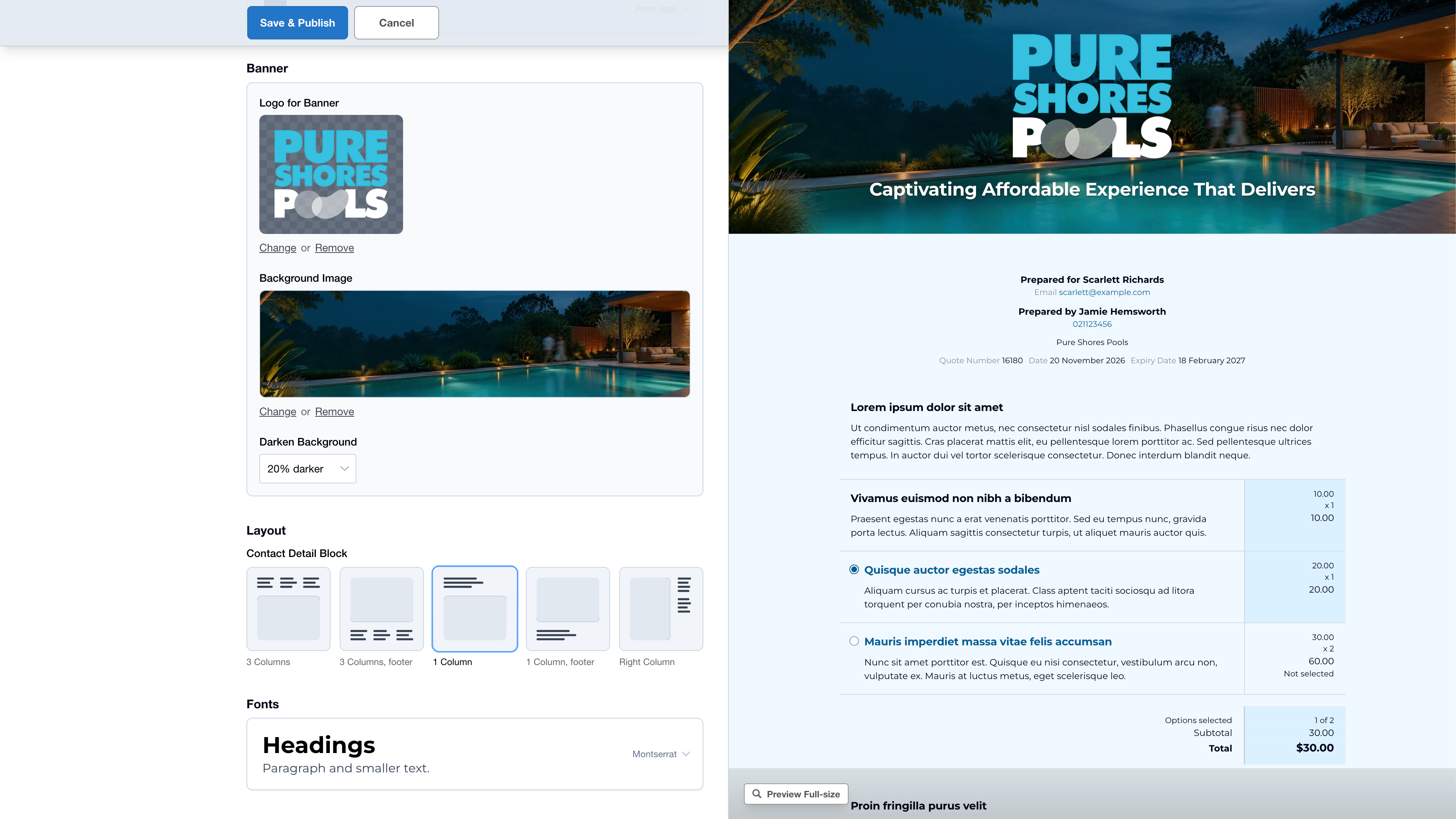
Add a banner across the top of your Quotes, using a photo or graphic that represents your business.
- Logo for Banner: Upload a version of your logo made for dark backgrounds, such as an all-white logo. It will sit on top of the banner. If you upload a Logo for Banner without a Background Image, the banner uses your Buttons & Links color.
- Background Image: A wide photo or graphic works best. It will be cropped to fit the banner.
- Darken Background: Darkens the image so your logo and Quote Title are easy to read on it.
To remove the banner, remove both the Logo for Banner and the Background Image.
Layout
Choose where your contact details appear on your Quotes:
- 3 Columns: Contact details run across the top in three columns. Ideal if displaying contact details is important.
- 3 Columns, footer: The same three columns, shown at the bottom of the Quote, after the items.
- 1 Column: Contact details run in-line at the top. Ideal for creating a clean and simple look.
- 1 Column, footer: The same single column, shown at the bottom of the Quote.
- Right Column: Contact details run down the right-hand column, with the Quote details in the left-hand column.
The footer layouts pair well with a banner, keeping the top of your Quote clean.
Fonts
Choose from a range of handpicked font pairings for your Headings and Body Text (Long Descriptions).
To choose your own, use the Customize tab to pick a Heading font and a Body font. Headings can also be set to Bold or Uppercase.
Word for Quotes
Choose whether your customers see a ‘Quote’, a ‘Proposal’, or an ‘Estimate’. This is used on your Quotes and in customer emails. In your own account, they're still called Quotes.
Note: Changing this setting will affect what's shown on all past, current, and future Quotes, as well as all future emails to customers.
Check Show ‘Download PDF’ on Quotes to let your customers (and you) download a PDF of each Quote.
The PDF Page Size can be A4 or US Letter.
Fine-tune Layout
Make finer adjustments to each part of your Quote.
Quote Title
- Align: Left, Center, or Right.
- Size: Small, Medium, or Large.
- Show in: Choose whether the Quote Title shows on the banner.
Logo
- Align: Left, Center, or Right.
- Size: Small, Medium, or Large. Logos are never stretched, so a small logo may look the same at Medium and Large.
- Show in: Banner, Header, or Footer.
Contact Details
- Align: Left, Center, or Right.
The alignment options available depend on the Layout you've chosen.
Contact Info, Pricing, and Acceptance
These settings have their own sections:
- Contact & Company Info: Choose which contact details appear on your Quotes, and add extra company information.
- Quote Default Settings: Change how you describe Tax (VAT/GST etc.) and whether to show Currency Symbols/Codes in your Quote Totals.
- Acceptance & eSignature: Change how customers accept your Quotes.