Deposits, Split Invoices, and Adjustments give you the power to manage cash flow and projects like a pro. Start using them today to keep your business running smoothly.
This update pairs perfectly with Xero or QuickBooks. For everyone else, stay tuned — we’re currently planning Quotient’s own built-in invoicing and payments!
Deposits are here
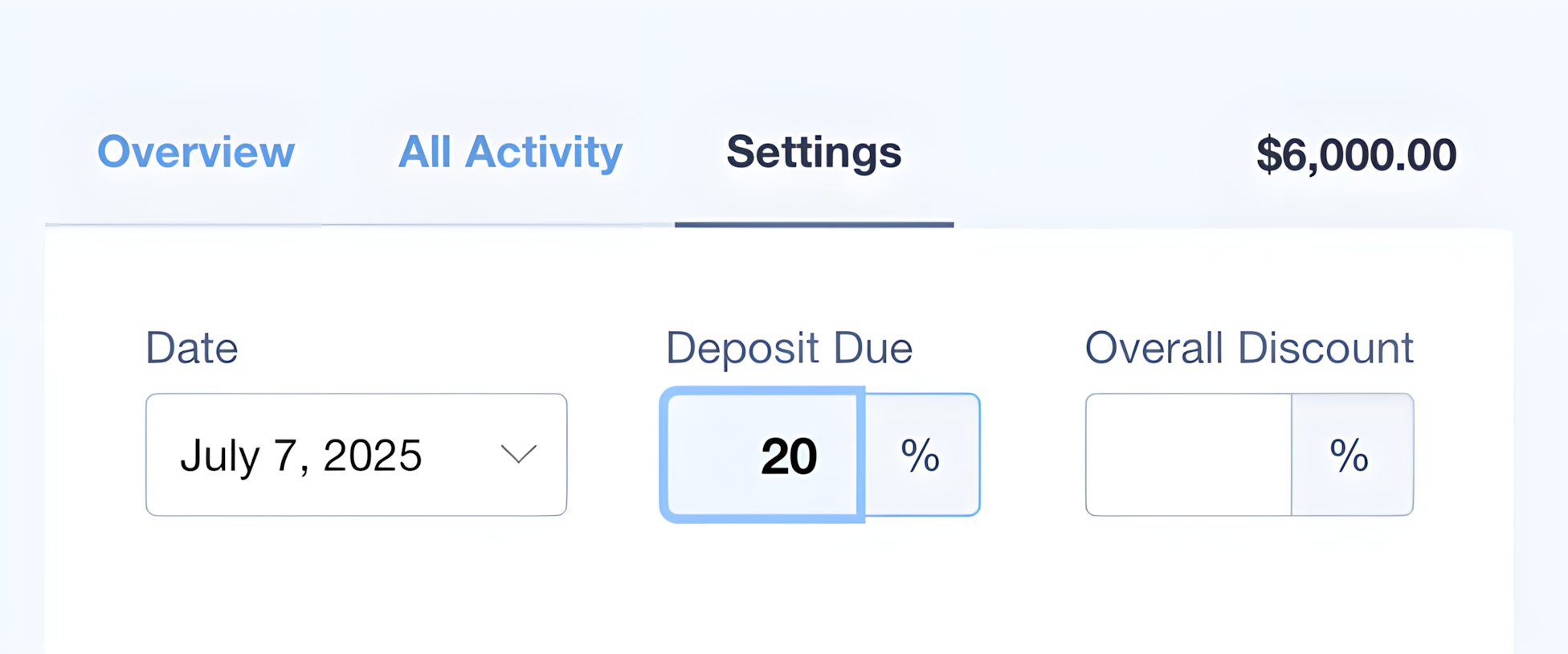
An upfront Deposit can save the day by protecting you and showing a mutual commitment to the project.
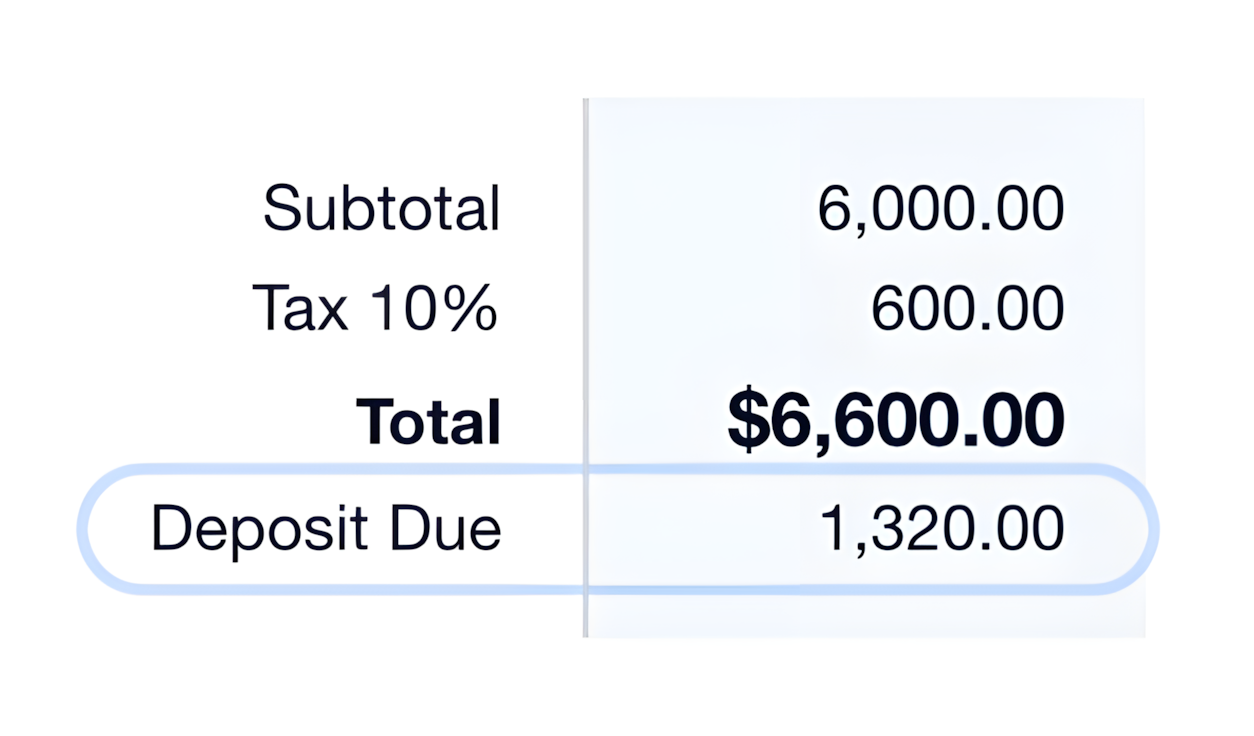
You can easily set a deposit as a percentage of the total on any Quote or Template.
The deposit amount adjusts automatically when a customer selects Optional Items or Editable Quantities.
For Xero or QuickBooks users, one great feature is being able to present a deposit invoice to the customer for payment immediately after the quote is accepted.
Split Invoices – for longer-term work
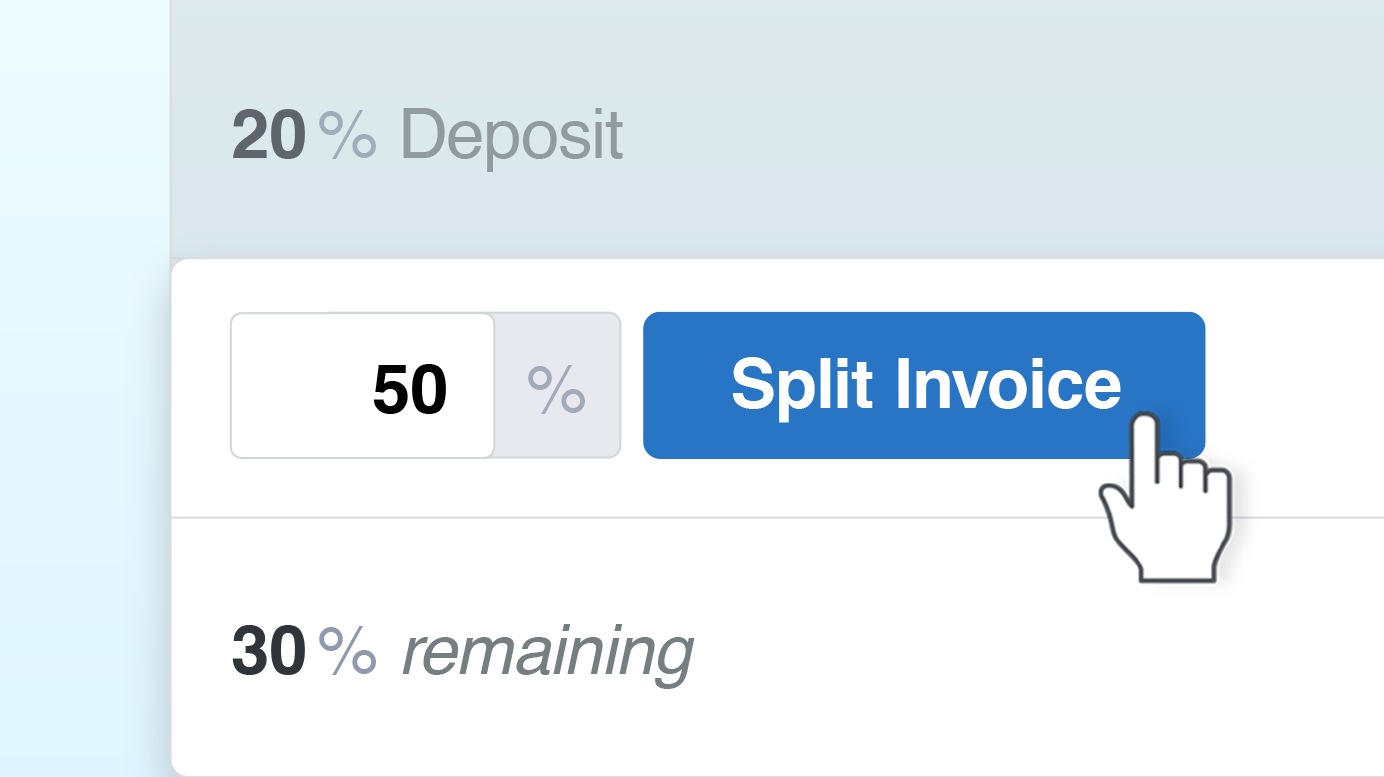
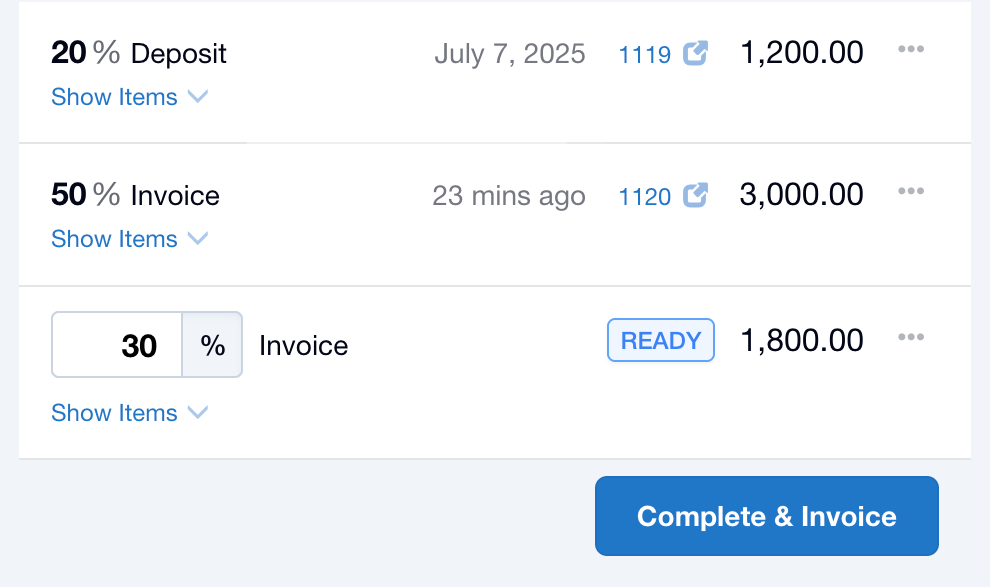
Split Invoices is a powerful new feature in Quotient that makes it easy to take “snapshots” of a quote in percentages. Invoice at any stage until 100% of the quote is covered.
It can save you a ton of work — no more manually cutting and pasting invoices in Xero or QuickBooks, or waiting until the end of a project to receive payments. Now you can keep things moving without the hassle.
Note: To use Split Invoices, make sure your Xero/QuickBooks > Create Invoices (Settings) is set to ‘When I decide’.
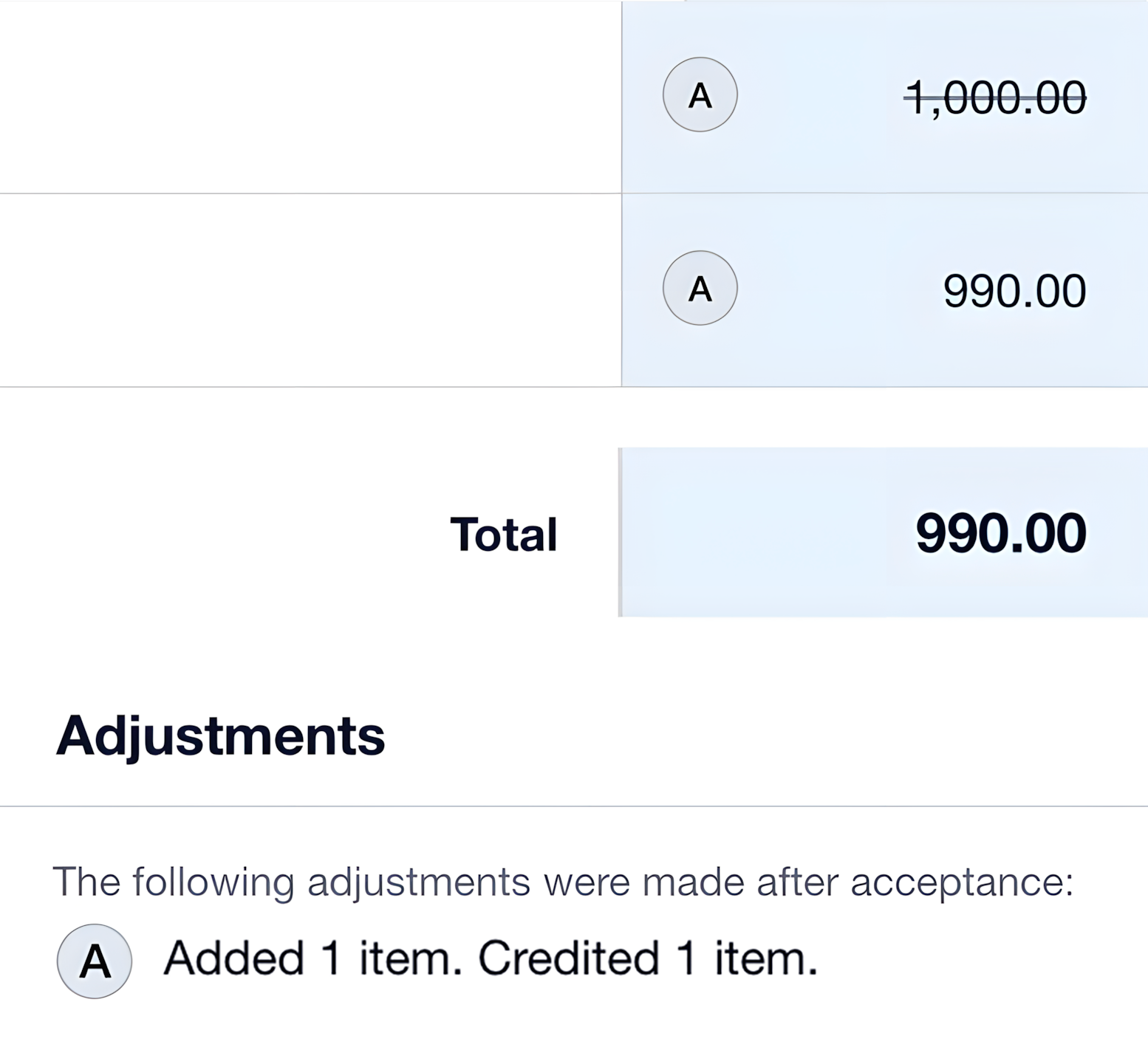
Adjustments – Add or Credit Items… after Acceptance!
Let’s be real – change happens. Clients add extras or scale back, and adjusting after acceptance can get messy.
That’s where Adjustments come in. Now, making changes post-acceptance is not only possible, but super simple:
- Add or credit items at any time — even after part of a project has been invoiced.
- Flexible: New items are included in the next invoice, while credited items generate a credit (or are excluded if not yet invoiced).
- Transparency: Your customers always see an up-to-date breakdown.