Adding and Removing Team Members
Team Members Explained
Team Members are additional users who can access your account to create and manage Quotes.
If you’re currently on the Solo Plan, your account will automatically upgrade to the Team Plan when you add a second Team Member. There’s nothing extra to do — simply add your team and your monthly billing will update accordingly.
On the Team Plan, all Team Members can view and manage all Quotes within the account, making collaboration simple and transparent.
Why Add More Team Members?
Track & Manage Quotes by Team Member
See exactly who created, sent, updated, or followed up on a Quote. Activity is linked to each Team Member, making it easy to track accountability and workload.
Roles and Permissions
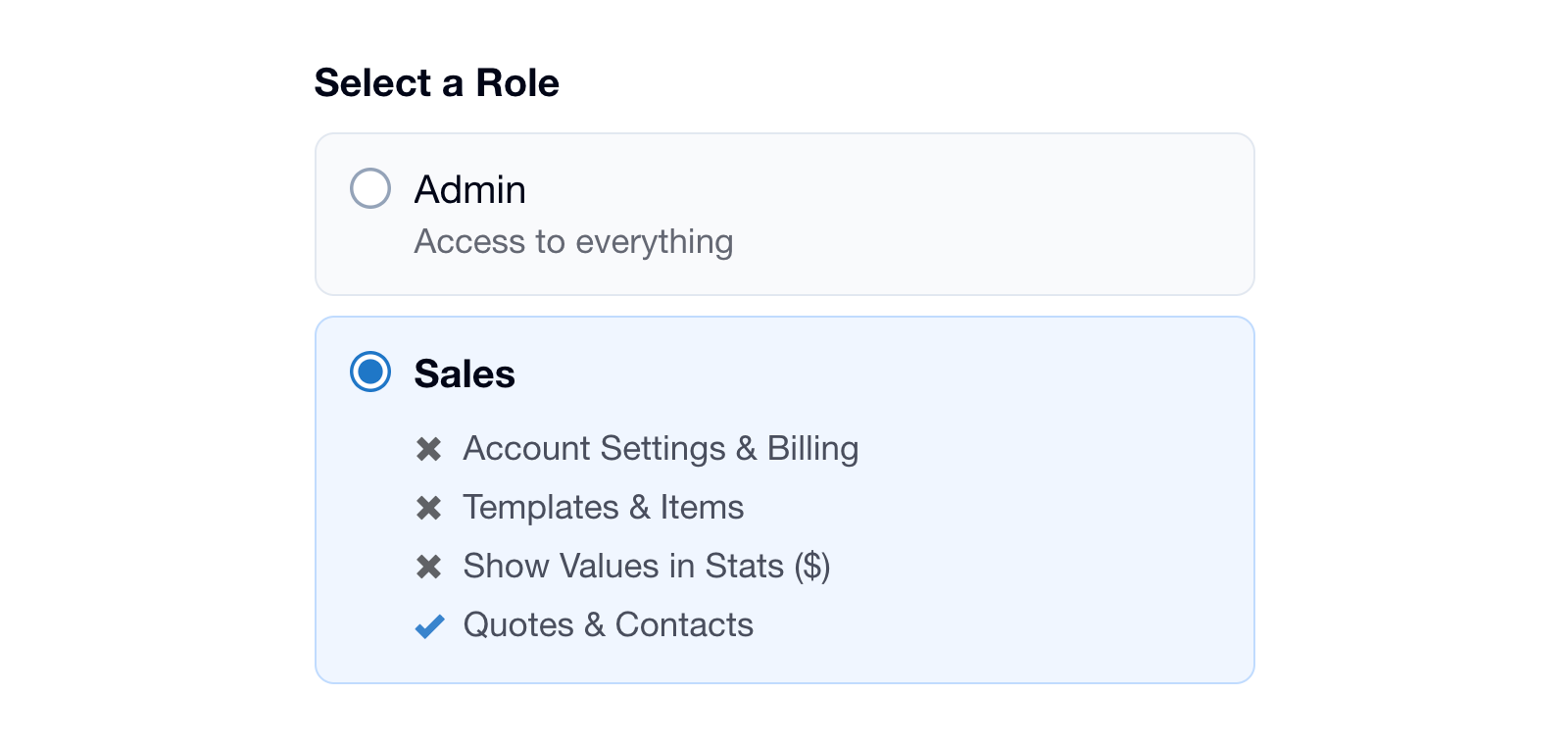
Team Members can be given different levels of access through Roles. The default Roles are Admin (which can access everything) and Sales (which has limited access, with modifiable permissions).
You can also create additional Roles, and adjust permissions to suit each Role. For example, you can prevent certain Team Members from seeing the monetary Values in your Dashboard Stats, or control access to Settings and Templates & Items.
See Roles and Permissions for more detail.
Individual Logins & Easy Access Removal
When each Team Member has their own secure login, you have full control over their level of access. If someone leaves your business, you can remove their access immediately and reassign their current Quotes to another Team Member.
Private Notes & Team Mentions
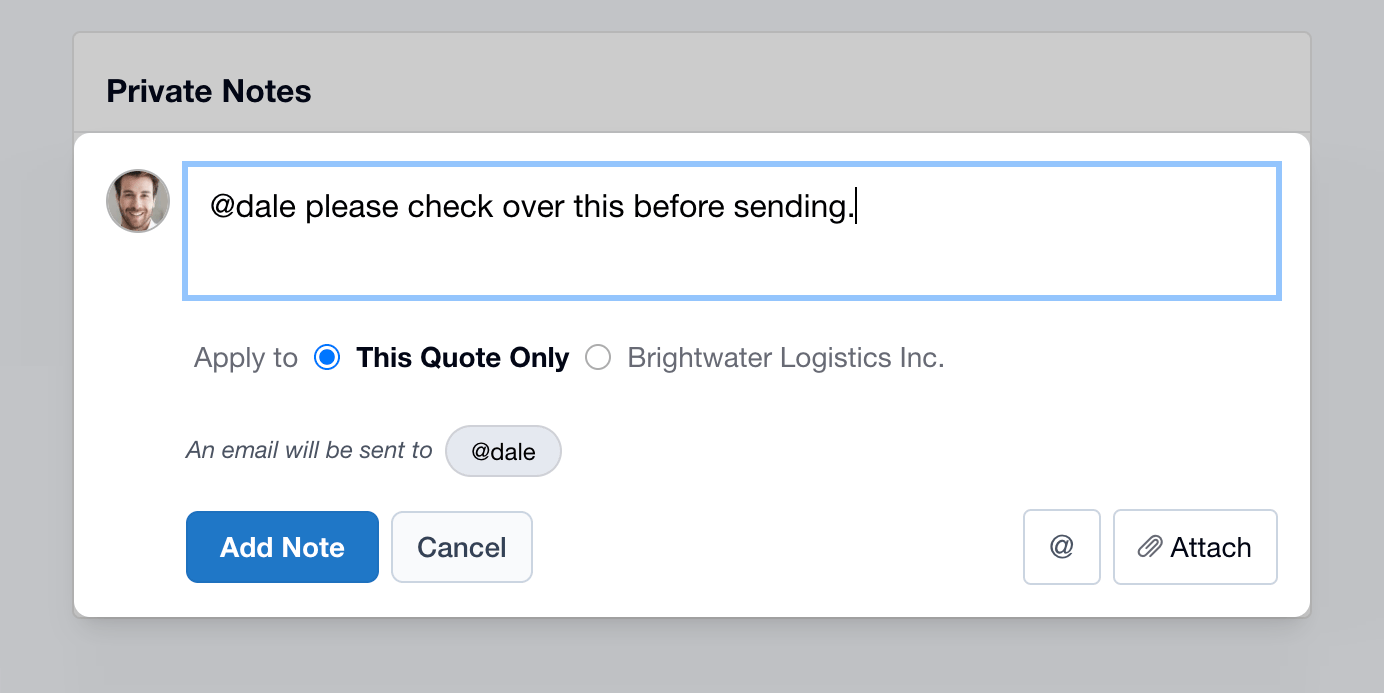
Keep internal conversations separate from your customer-facing content. Add private notes to Quotes so your team can collaborate behind the scenes without your client seeing the discussion.
You can also tag other Team Members in a note to notify them directly — ideal for requesting input, flagging an issue, or handing over responsibility.
Personalized Emails & Footers
Each Team Member can use their own name, email signature, and contact details, keeping communication personal and professional.
“We / Me” Dashboard Filtering
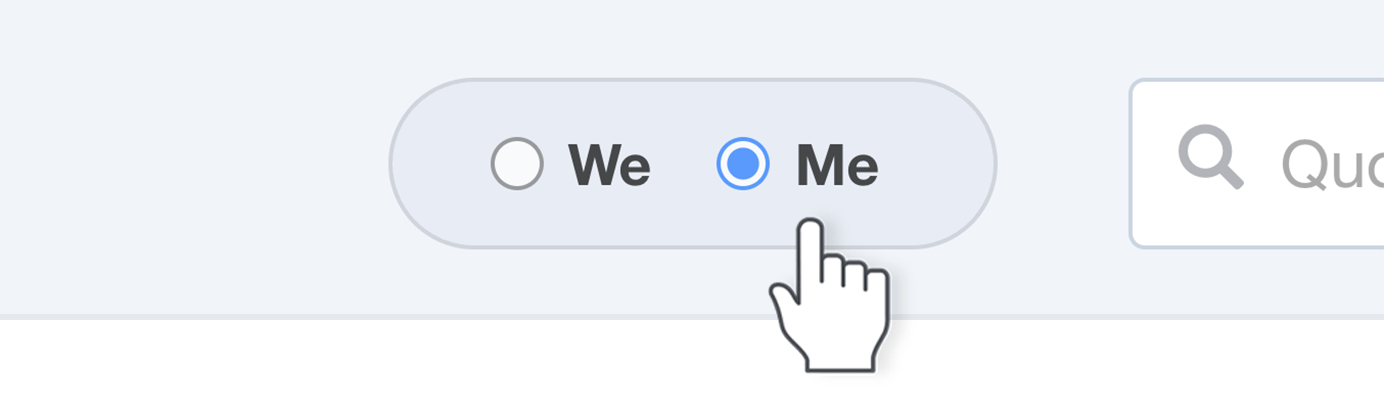
The We / Me control on the Dashboard lets you switch between viewing everyone’s activity (“We”), or just your own (“Me”). We shows everyone’s Quotes, Stats, Open Leads, and Follow-ups. Me shows only yours.
Relevant Notifications
Notifications are sent to the appropriate Team Member, ensuring the person responsible for the Quote stays informed, without unnecessary noise.
Add a Team Member
- Go to Account Settings → Team Members.
- Hit 'Invite Team Members'.
- Enter the email address (or multiple email addresses separated by commas).
- Choose the appropriate Role, and adjust permissions if needed.
- Hit 'Send'. Each Team Member will receive an email invitation prompting them to accept and create their password.
Remove a Team Member
- Go to Account Settings → Team Members.
- Click on the Team Member you wish to remove.
- Click 'Actions' (top right), and select 'Remove This Person'.
- You’ll be prompted to choose another Team Member to become the author of their current Quotes.
- Confirm Remove from account. If you change your mind, you can invite them back at any time.
What happens when a Team Member is removed?
- Their current Quotes will be assigned to another Team Member.
- You will not lose any old Quotes that were created by that Team Member. Their Quotes can still be found by search or when filtering by Past Team Members.
- Unanswered Questions will continue to display with a 'Question' bubble in the Quotes list.
- Email notifications will no longer be sent to the removed Team Member.