
First impressions count. Your quote is often the first real look a customer gets at your business, which means it needs to look and feel exactly like you.
We’ve rebuilt our Branding & Layout tools from the ground up, and we’re thrilled to share them with you. You can now add stunning banners, extract color palettes straight from your logo, pick from fresh font pairings, and put every element exactly where you want it.
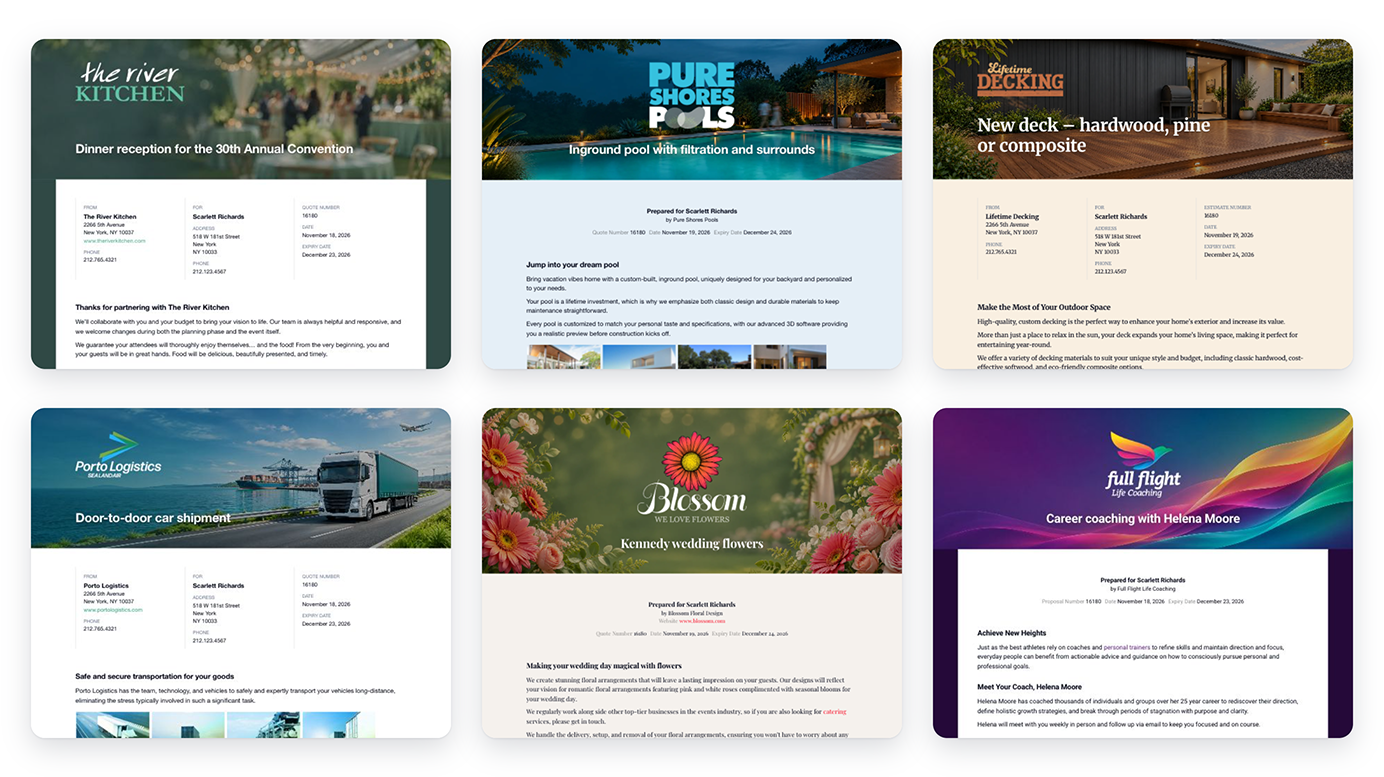
Stand out with custom banners
Add a photo or graphic across the top to give your quotes a highly professional edge. You can use the new tint setting to subtly darken the photo, ensuring your quote title stays crisp and easy to read.
Have a white or light version of your logo? Upload it as your Logo for Banner to float it seamlessly over your photo. No photo handy? A banner logo on its own creates a clean, professional strip in your brand's signature color.
Pull colors instantly from your logo
Upload your logo, and Quotient will automatically extract the primary colors to build a matching palette for you. Not quite what you wanted? Just hit Undo.
Prefer to call the shots? Choose from our ready-made palettes or hand-pick your own custom colors. You can even set a Background color for the quote page itself (which operates independently from the Outer Background color).
Pair fonts like a pro
Choose from typography pairings we’ve expertly matched for you, including two new additions: Libre Baskerville and Urbanist. You can also mix your own, using bold weights and our new UPPERCASE options for sharp, modern headings.
Put things exactly where you want them
Pick from five distinct layouts for your contact details, including two new options that tuck them neatly into the footer. This leaves the top of your quote completely free for your banner and title to shine.
From there, use Fine-tune Layout to nail the alignment and size of your quote title and logo. You can choose exactly where your logo lives: on the banner, in the header, in the footer, or a mix. As you tweak the settings, the live preview shows you exactly what your customer will see.
See the new Branding & Layout tools in action:
Tidier, simpler settings
To make room for these upgrades, we’ve split the old ‘Layout, Contact Info, Acceptance’ menu into four intuitive sections in your Settings:
- Branding & Layout: How your quotes look visually.
- Contact & Company Info: The business details shown on your quotes.
- Acceptance & eSignature: How customers accept your quotes.
- Quote Default Settings: Your currency, tax, and pricing formats.
Your existing settings have been carried across, so your quotes will look the same until you change something.
Get inspired
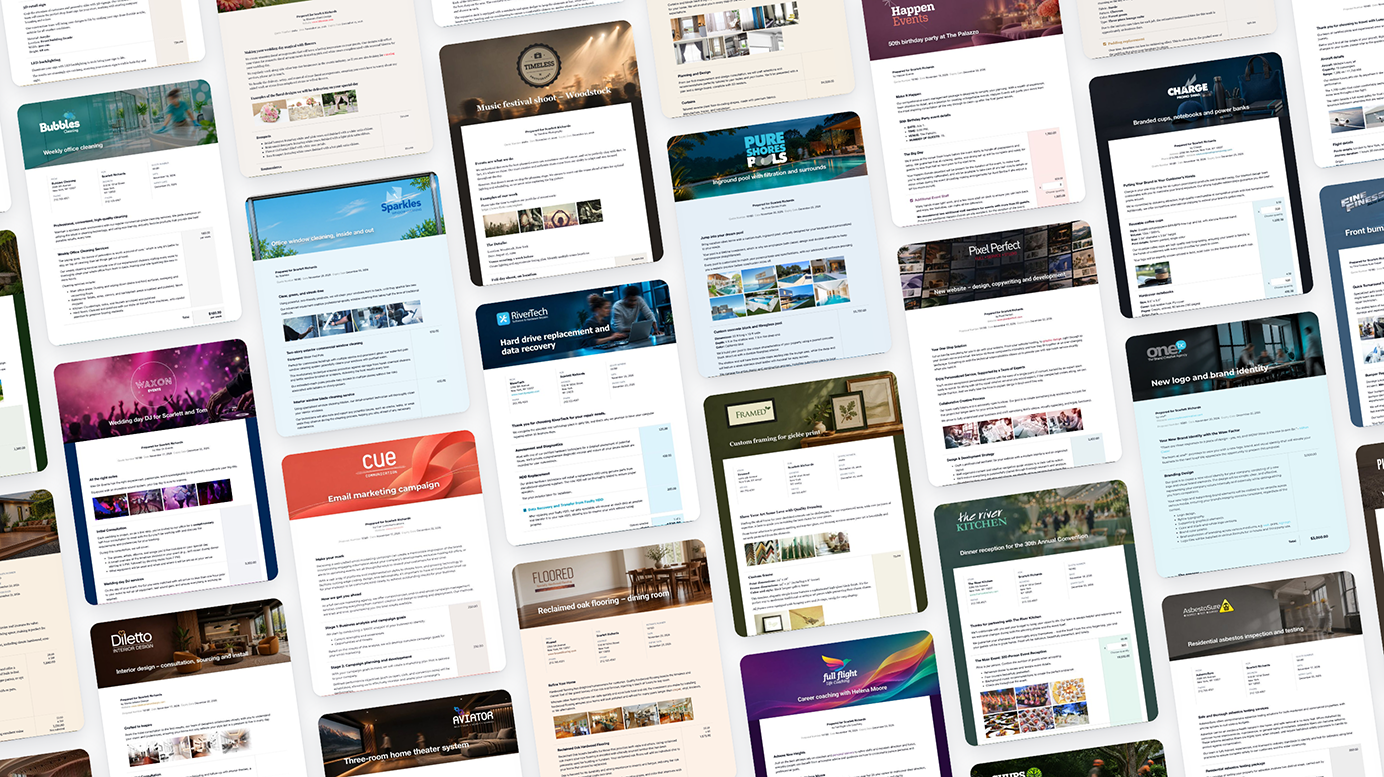
We’ve refreshed our quote examples and sorted them by industry to show off the new banners and color capabilities. Find an example close to your business, see what catches your eye, and make it your own.
Make it yours
Ready to give your quotes a fresh look? Head to Settings → Branding & Layout today.
If you need a hand sizing a banner, uploading your logo, or dialing in your colors, just get in touch. We’re always happy to help you get things looking perfect.